
Castle App for PCHow the Castle APK runs on Windows 10, Windows 11, laptops and Mac, and which fake installers to avoid
Looking for the Castle app for PC? There is no Windows or Mac version of Castle. The Android APK only runs on a computer inside an Android emulator. This guide shows how that works, what your PC needs, and which “Castle for PC” downloads to avoid.
- Step-by-step emulator setup for Windows and Mac
- Real PC requirements, no fake installers
- Legal ways to watch on a computer

Castle app for PC at a glance
On this page
Is there a Castle app for PC?
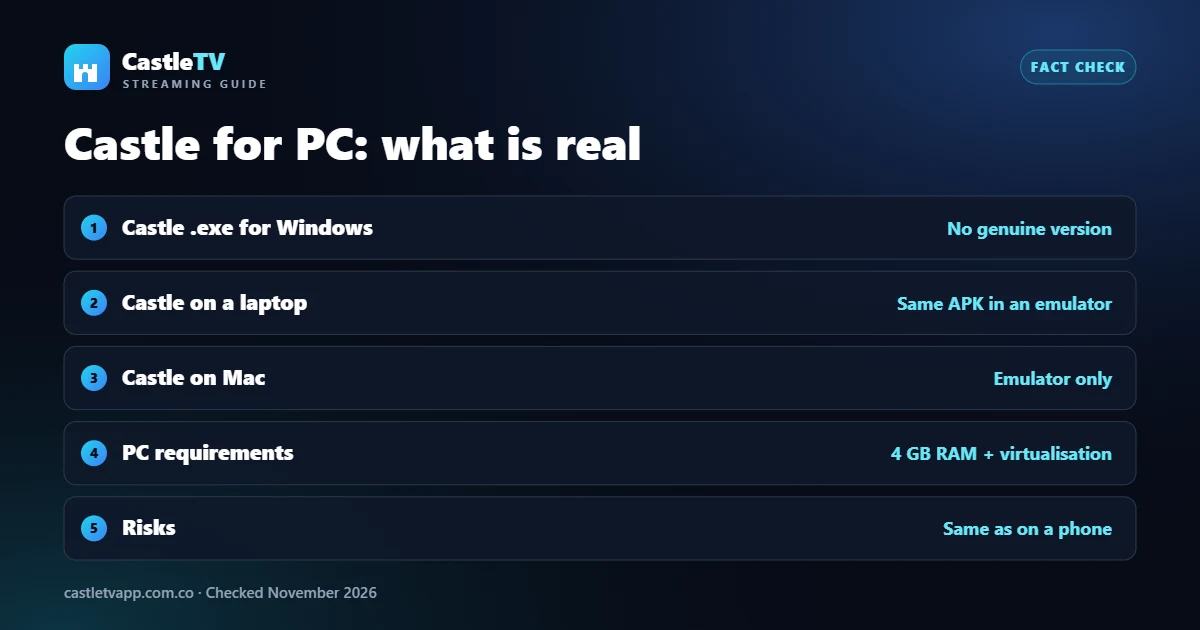
No. Castle is made for Android phones and is shared as an APK file. There is no Castle app in the Microsoft Store or the Mac App Store, and no genuine Castle installer for Windows. Every working “Castle app for PC” method is the same Android app running inside an emulator, a program that imitates an Android phone on your computer.
How to run the Castle app on PC (Windows 10 and 11)
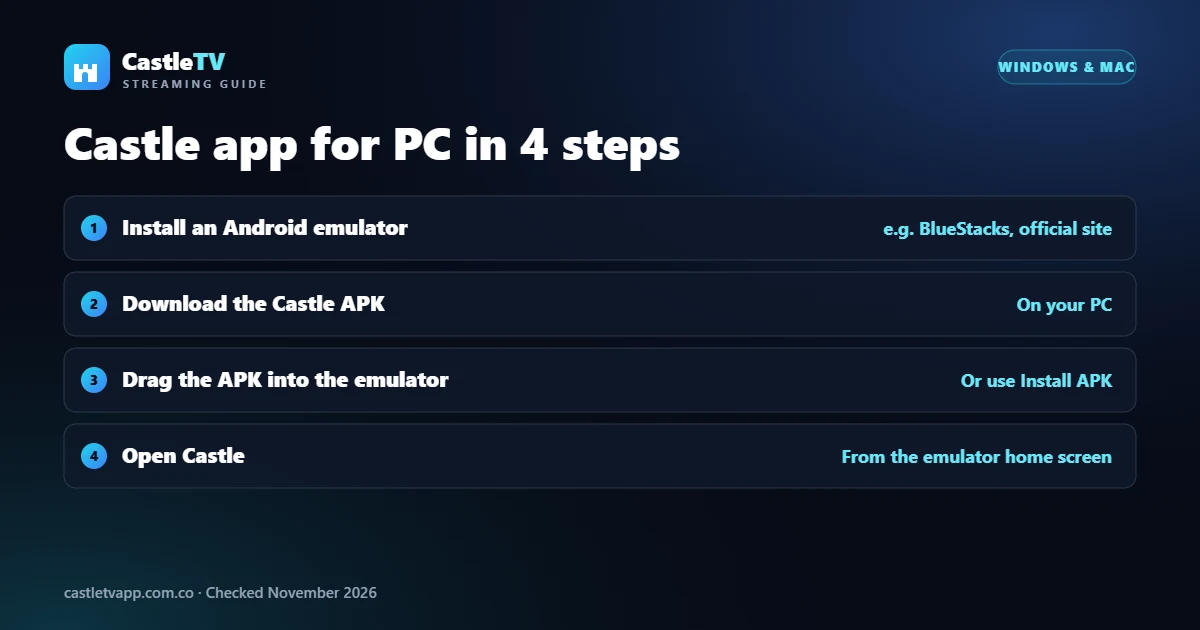
- Install an Android emulator. The most widely used one is BlueStacks; download it only from its official website.
- Download the Castle APK on your PC from our Castle app download page.
- Drag the APK into the emulator window, or use the emulator’s Install APK option.
- Open Castle from the emulator’s home screen.
The steps are the same on a Windows laptop. The emulator runs the same unofficial app with the same risks as on a phone, so read our Castle app review before you start.
Castle app on Mac
Macs can’t open APK files either. To use the Castle app on a Mac, you would need an Android emulator that supports macOS, then install the APK inside it. On newer Apple Silicon Macs, emulator support is more limited, so check the emulator’s own requirements first.
PC requirements for the Castle app
- Operating system: Windows 10, Windows 11 or a recent macOS.
- Memory: 4 GB of RAM or more; 8 GB runs emulators far more smoothly.
- Virtualisation: turned on in your PC’s BIOS or UEFI settings.
- Storage: a few gigabytes free for the emulator and the app.
- Internet: a stable connection for streaming.
Fake “Castle for PC” downloads to avoid
- “Castle.exe” or “Castle setup” files: there is no genuine Windows installer, so these are other software or malware.
- “Castle for PC online” websites: pages that claim to stream Castle in a browser are not run by the app’s makers.
- Bundled emulators from random sites: download emulators only from their official websites.
- Survey or “verify you’re human” walls: real downloads never need them.
Tips for using the Castle app on PC
Once the Castle app for PC is running in an emulator, a few settings make it far easier to watch on a laptop or desktop screen:
- Give the emulator more power: in its settings, allow 4 CPU cores and 4 GB of RAM if your PC has them to spare.
- Switch to landscape: most emulators can rotate the window, which fills a widescreen monitor better.
- Use a separate Google account: don’t sign in to the emulator with the account you use for email or payments.
- Keep the emulator updated: updates fix crashes and graphics bugs that often look like app problems.
Castle app for PC not working? Fixes
- The emulator won’t start or is very slow: turn on virtualisation (Intel VT-x or AMD-V) in your BIOS or UEFI settings, then restart the PC.
- The APK won’t install: download it again and check the file is 34.5 MB. A smaller file is incomplete.
- Black screen when a video plays: switch the emulator’s graphics renderer between DirectX and OpenGL in its settings.
- Castle for PC keeps crashing: close other heavy programs, then reinstall the APK inside the emulator.
If none of these help, the problem is usually the app rather than your PC: unofficial apps lose their sources often. In that case, the legal options below are a more reliable way to watch on a laptop.
Watch legally on a PC instead
If you mainly want to watch on a big screen, licensed services are easier on a computer. Netflix and HBO Max work in any modern browser, and our guides to Tamasha and ARY Plus explain the devices they support for cricket and Pakistani dramas.